
Day-to-day work
Request for quotes
Open a deal's Requests For Quotes tab to get prices from your trade partners. The summary shows how many requests, recipients (including drafts) and submitted quotes you have. Select an existing request on the left, or choose New request.
This feature uses native estimates, rather than estimates managed in Buildxact. It is included on the Crew and Company plans and must be enabled by an administrator. Owners can change plans under Settings → Billing. If you move to Solo, already-sent recipient links keep working, but you cannot create or send new requests and automatic reminders pause until you upgrade again.
Start with the scope
Choose the estimate to quote from, filter its items by category and select the work you want priced. Select shown items selects everything in the current category; previously selected items in other categories stay selected. Clear selection starts again. Give the request a useful name, such as "Roofing & rainwater", then choose Create package.
The request takes a snapshot of those items. Contractors receive descriptions, categories, quantities and units, never your estimate's costs or markup. Later estimate changes do not rewrite the request's scope.
Use Scope & documents to add instructions and attach plans, specifications or photos. Save your notes before sending. Moving between the three views preserves your edits; leaving a request with unsaved notes asks you before discarding them. If a refresh finds that someone changed the saved notes while you were editing, you see the latest saved text alongside your draft. Use latest notes keeps their version; saving your draft asks before replacing it.
Attachments can be up to 20 MB. You can update the attachment list even after sending; partners see the current list. Removing a file immediately removes their access to it. Files are available only while their request link is live: submitting, declining or reaching expiry closes attachment access too.
Choose the people
In Contractors & send, select one or several people from your Contractors directory. Search by business name, email or trade, or use the trade filter. Selections carry across filters. People already on the request are marked and cannot be added twice, including anyone previously added by email.
If the directory is empty, use Contractor directory to add your trade partners and mark them eligible for quotes. It opens separately so you can return to your request and choose Refresh directory. Contractors remains available only where your plan includes it. Refreshing preserves your selections for contractors who remain eligible and keeps your search and trade filters (unless the chosen trade no longer exists).
Add a one-off recipient by email works for someone outside the directory and does not create a directory contact. Adding someone to a request does not send mail. If some selected contractors cannot be added, the screen names them and keeps them selected for retry; successful additions remain on the request.
Send and track replies
Review the recipient list, set Due in (days) and choose Send. Only draft recipients get a new invite, so adding another contractor later does not resend everyone else's invitation. Save any unsaved scope notes first.
The due date is a whole day in your business's timezone (set in your regional settings). A request sent with Due in (days) of 7 on a Tuesday is due the next Tuesday, and its link keeps working until midnight at the end of that day, whatever time you sent it. You, the partner's invite email and the partner's page all see the same date.
Each recipient shows their status and due date. Immediately after sending, a failed or unknown email-delivery result appears on the recipient row, and you can copy the request link to share manually. Those delivery messages are session-only: switching requests or reloading clears them. A Sent status means a link was issued, not proof that the email was delivered. Attachments and any uploaded contractor quote remain available through their existing file links. Use Refresh replies to check for new responses without leaving the request.
Recipient statuses are Draft (not sent), Sent (link issued), Viewed, Submitted, Declined and Expired. Sent does not guarantee email delivery; check any delivery-failure message on the row. Viewed means the partner opened the page in a browser. An email security scanner or link preview checking the link does not count, so a request can stay Sent after the email has been delivered. The default response window is seven days and can be changed when sending. Automatic reminders prompt partners who have not responded, with a cap on the number of reminders.
What a trade partner sees
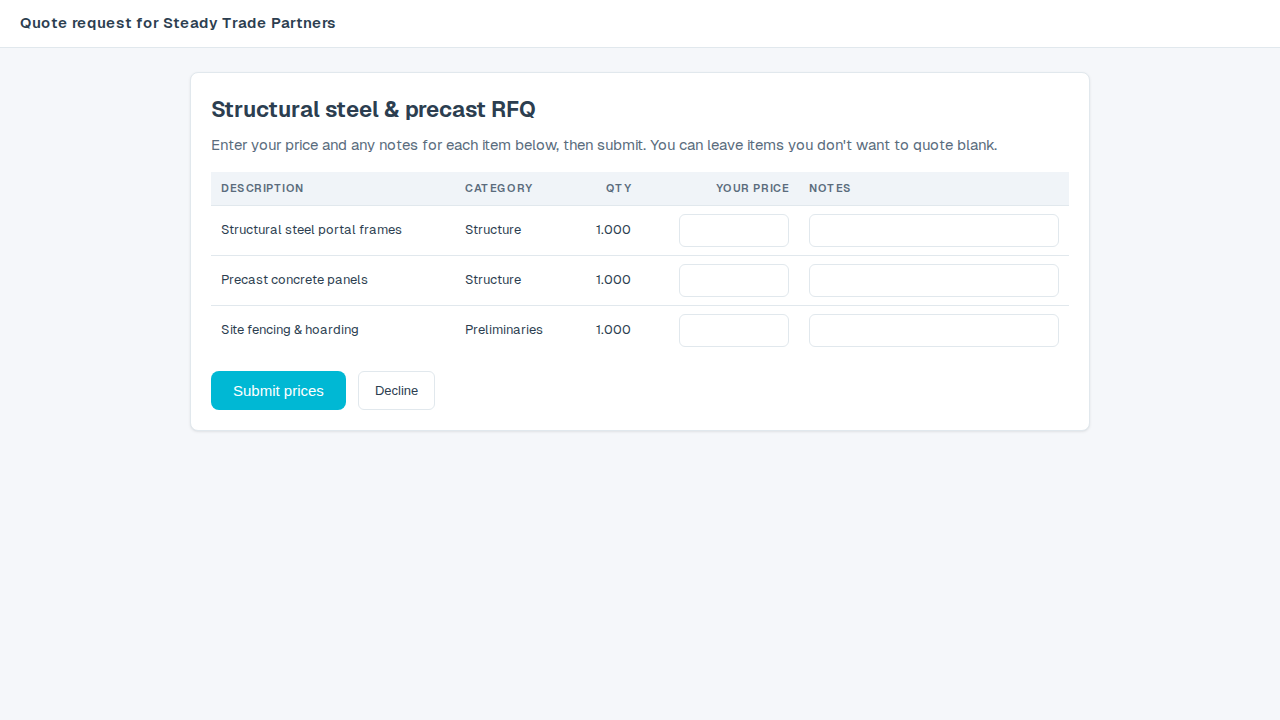
The invite link opens a public page with the requested items and a price and notes field for each. No account is needed. Partners can price some items, leave others blank, add qualifications and submit, or decline the request. They never see other contractors' quotes or your estimate pricing.
Compare and bring prices into the estimate
Open Compare quotes for returned quote totals, item coverage and the side-by-side comparison. Check the coverage as well as the total: a quote for two items is not equivalent to a quote for the entire scope. Expand a line's Note to read the contractor's qualifications or timing.
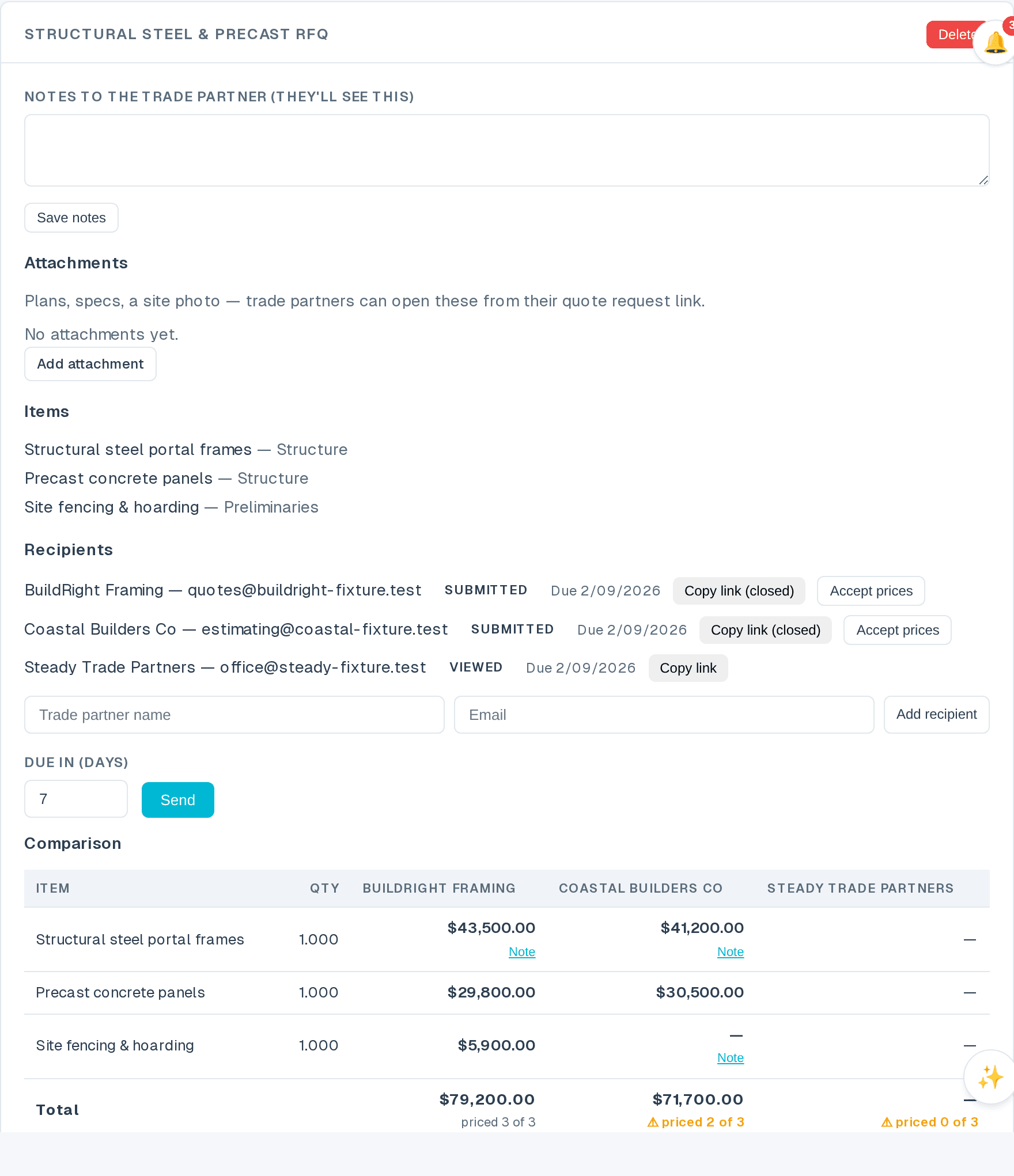
Accept quote writes that recipient's available line prices into the original estimate. It does not place an order or send an award email. The result tells you how many prices were written and flags items that no longer exist. An uploaded PDF is supporting information; only entered line prices can be written into the estimate.
Accepted prices are marked ✓ in estimate. The recipient's column shows how many items they won and the accepted total. Each item has one accepted supplier at a time; accepting another supplier's price moves the marker to match the estimate's cost. Re-accept quote reapplies the supplier's prices. You can also use Accept prices on the recipient row in Contractors & send.
On phones, controls stack and wide comparison tables scroll inside their card.