
Day-to-day work
Job scheduling: a drag-and-drop timeline for every job
Lay out a job as a set of tasks on a timeline, drag them around or resize them as dates change, wire up which tasks depend on which, and see every scheduled job across the company in one place.
If you don't see a "Schedule" tab on a deal, or a "Schedule" link in the sidebar, an administrator hasn't turned this feature on yet.
Works the same whether the deal lives in the native CRM or came in through HubSpot: scheduling isn't tied to which system tracks the deal itself.
The Schedule tab
The programme list opens with a summary of scheduled tasks, completed tasks, the earliest start and the planned finish. Completion counts tasks recorded at 100%; it is not an estimate of overall project progress. On phones, each task has its own card with labelled dates, duration and progress.
Use Programme list for an overview or Gantt chart to work with dates and dependencies. For a new programme, open the Gantt chart to add a task or seed tasks from an available estimate. Field users see the same programme without editing controls.
Open a deal and click the Schedule tab: it sits along the row of tabs above the deal's content, after Specifications. You can also jump straight to it: any deal link ending in ?tab=schedule opens the deal with that tab already selected, which is what the company-wide Schedule page's "Open schedule" links do.
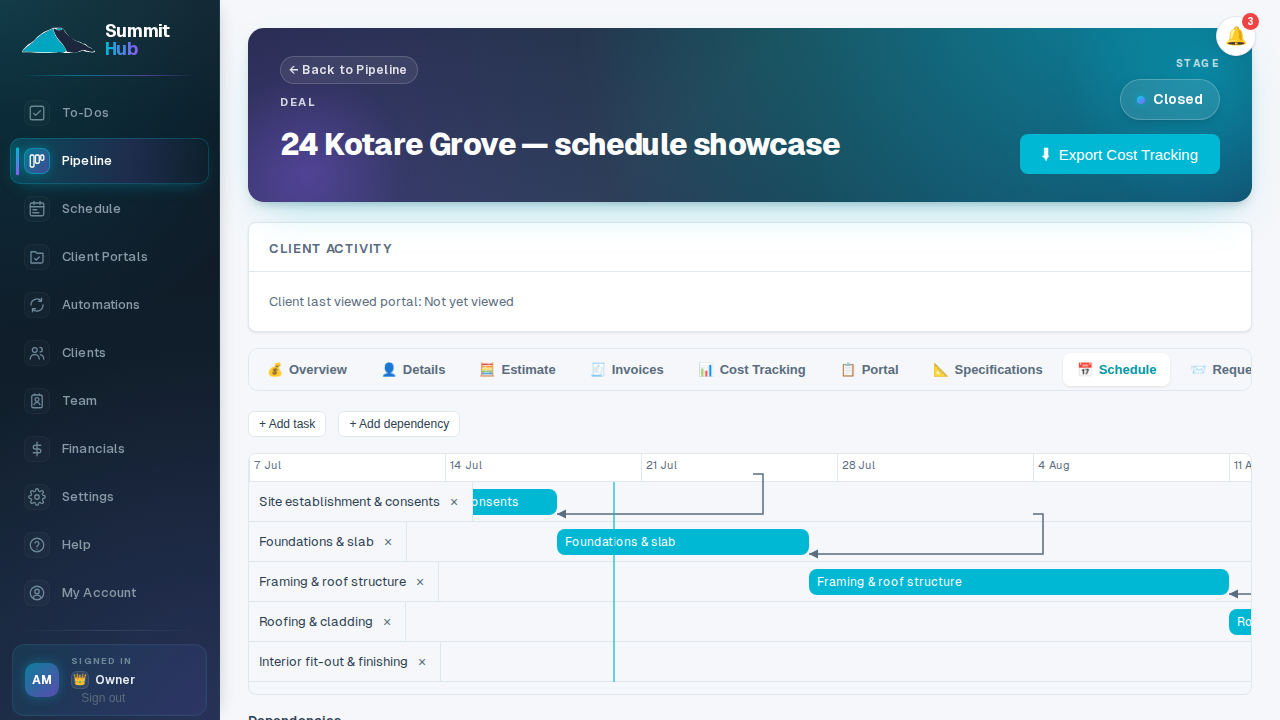
Each task is a bar on a timeline: its position shows the start date, its length shows how many days it runs, and its dates are printed right on the bar. On a short task (four days or fewer) the bar has no room for them, so the dates print just beside it instead of being cut off. Task names are not printed over the chart: every task is named once, in the fixed column down the left, where a long name has room to be read instead of being squashed onto a two-day bar. The chart opens already scrolled to today (or to the earliest task, if today falls outside the schedule), and a labelled "Today" line runs the full height of the chart so it's easy to spot at a glance. Its "Today" tag sits just above the day numbers, so it never hides a date. Above the timeline, a calendar strip shows the month and year, the week (Monday-anchored), and every individual day, so you can always tell exactly which date a bar starts or ends on. The day row shows the date itself, 21, 22, 23, rather than a weekday letter, since the shaded weekend blocks already tell you where each week breaks.
- Add a task: give it a name, an optional category, and a start/end date. The dates come pre-filled: a new task starts the day after everything else on the deal finishes (skipped forward to the next working day if that lands on a weekend or public holiday) and runs five days. Change the start and the end moves with it, keeping the same length. Where your account schedules in working days, the length counts working days too: a five-day task starting Wednesday finishes the following Tuesday. On a deal with nothing scheduled yet the start is simply today, weekend or not: there's nothing to schedule it after, so it's yours to set. The button is greyed out for the moment the schedule takes to load, so the dates you are handed are always measured against the real task list.
- Move a task: drag its bar left or right to a new date range. Where your account schedules in working days, the task keeps the same number of *working* days: a Monday to Friday task dragged to a Wednesday runs Wednesday to the following Tuesday, stepping over the weekend rather than eating two days of it.
- Resize a task: drag either edge of the bar to change how long it runs.
- Give a task one more day: click its bar. A small strip appears above the chart with the task's name, its dates, and a +1 day button; each click pushes the end date out by one day. When your account schedules in working days, that's one *working* day: a task finishing Friday moves to Monday, and steps over a public holiday. The button greys out for the moment it takes to save, so clicking it three times quickly really does add three days.
- Delete a task: the 🗑 next to its name in the list on the left.
Programme list: a plain list view
The Schedule tab opens on a plain table: one row per task, showing its name, category, start date, end date, how many days it runs, and its progress. A small toggle above the list switches to the Gantt chart and back; switching doesn't lose your place or refetch from scratch, so flicking between the two is instant.
The list is the easier read when you just want the facts: what's next, how long something takes, how far along it is, without scrolling sideways through weeks of an empty timeline to find it. Use the Gantt when you actually need to see the shape of the schedule, drag dates around, or manage dependencies. On a phone, the list reflows into a stack of cards, one per task, each field labelled, so nothing needs sideways scrolling to read.
- Duration is always counted in working days: weekends and public holidays are skipped, so a task running Monday to the following Monday reads "6 working days", not eight. It uses the same holiday calendar the Gantt shades weekends and holidays with (including your region's anniversary day, if one is set).
- Progress shows a small bar and percentage once a task has one recorded, or "Not started" if it doesn't yet.
- Office staff can delete a task straight from the list with the 🗑 in its row, same as the 🗑 in the Gantt's task list. Field accounts see a plain read-only table with no delete button.
- The two views always agree: a change made in one (deleting from the list, or dragging, adding, seeding or deleting in the Gantt) refreshes the other, so switching across never shows a task that has just been changed or removed.
Dependencies (what has to finish before what can start)
The quickest way is to draw one. Hover a task's bar and a small circle appears just past its right-hand end: press it and drag onto whichever task has to wait for it. The task you're over highlights, a dashed line follows the drag, and letting go creates the dependency. Let go anywhere else, or back on the same task, and nothing happens. Works with a finger or a stylus on a tablet as well as a mouse.
Not using a pointer? Tab to that same circle and press Enter: it opens the Add dependency form with the task already chosen as the predecessor and the cursor waiting in the Successor box.
For anything with lag, click Add dependency and pick a predecessor and a successor task, plus the extra lag days, e.g. "3 days after the concrete pour finishes, to let it cure". Either way the dependency shows as an arrow on the chart, running from the end of the predecessor to the start of the successor. The successor's dates start just past the arrowhead, so the arrow never hides a digit.
Once a dependency exists, moving the predecessor automatically pushes the successor out just far enough to keep the gap valid, and if that successor has its own dependents further down the chain, they shift too. If a task already had enough slack to absorb the move, it's left exactly where it was: nothing shifts unless it actually has to.
You can't create a dependency that would loop back on itself (directly, or through a chain of other tasks): the app rejects it before it's added, and says so above the chart whether you drew it or used the form.
Seeding a schedule from your estimate
If the deal has a native estimate, use Seed tasks from estimate to generate a starting timeline in one click: one task per category used in the estimate (in the same order those categories first appear), laid out back-to-back starting today. Adjust the dates, names and dependencies from there: it's a starting point, not a final plan.
If the deal has no estimate in Summit but does have a Buildxact job or estimate linked to it, the button reads Seed tasks from Buildxact estimate and there's no estimate to pick; it uses the estimates already linked to the deal. That covers both the case where you estimate in Buildxact rather than in Summit, and the case where you simply haven't built the Summit estimate yet. Once the deal has a Summit estimate, the original Seed tasks from estimate button takes over.
The tasks it creates are the cost categories you see on the deal's Estimate tab, in the order Buildxact lists them, so the schedule starts out reading like the estimate you priced the job from. A category that appears on two linked estimates becomes one task, not two. Either way, seeding adds to whatever is already on the schedule: it never replaces tasks you've already set up.
If no categories have reached Summit yet, seeding tells you so instead of quietly doing nothing. Refresh the deal from the Estimate tab and try again.
Working days only
The schedule only ever plans work onto weekdays that aren't public holidays:
- Seeding from an estimate gives each task five *working* days. A task starting on a Thursday finishes the following Wednesday, not the Monday.
- Dragging a task keeps its length in working days, so it never quietly loses two days to a weekend it now spans.
- A new task added by hand starts on a working day, and its five days are five working days.
- When you move a task and its dependants shift with it, they land on the next working day (never a Saturday) and keep the same number of working days they had before.
- A dependency's lag is counted in working days too, so "two days after" means two days the crew is actually on site.
- Weekends and public holidays are shaded on the chart, so a bar that stretches across a long weekend is obvious at a glance.
The holidays are the New Zealand national ones: New Year's, Waitangi Day, Easter, ANZAC Day, King's Birthday, Matariki, Labour Day, Christmas and Boxing Day, including the Monday they move to when one falls on a weekend.
Your anniversary day
Under Settings → Scheduling → Schedule holidays, the account owner can pick the region whose anniversary day your crew takes off (Canterbury for a Christchurch builder, Wellington, Otago, and so on). That day then counts as a non-working day everywhere the national holidays do: seeding, dependency shifts, and the shading on the chart. Leave it on None and only the national holidays apply, which is how every account starts.
You pick one region, not several: it's the day your business closes, not a list of everywhere you work. Changing it doesn't move any existing dates; the next task you drag or schedule you seed uses the new calendar.
Each region in the list shows the rule it follows ("Monday nearest 29 January", "Friday before Labour Day"), because anniversary days are as much local custom as law: Otago and Westland in particular are observed on different days in different districts. If your district takes a different day, fill in Our own observed date underneath as MM-DD (so 12-08 for 8 December). That date is used exactly as you type it, on whatever weekday it falls, and replaces the region's day. Leave it blank to use the region's rule.
The company-wide Schedule page
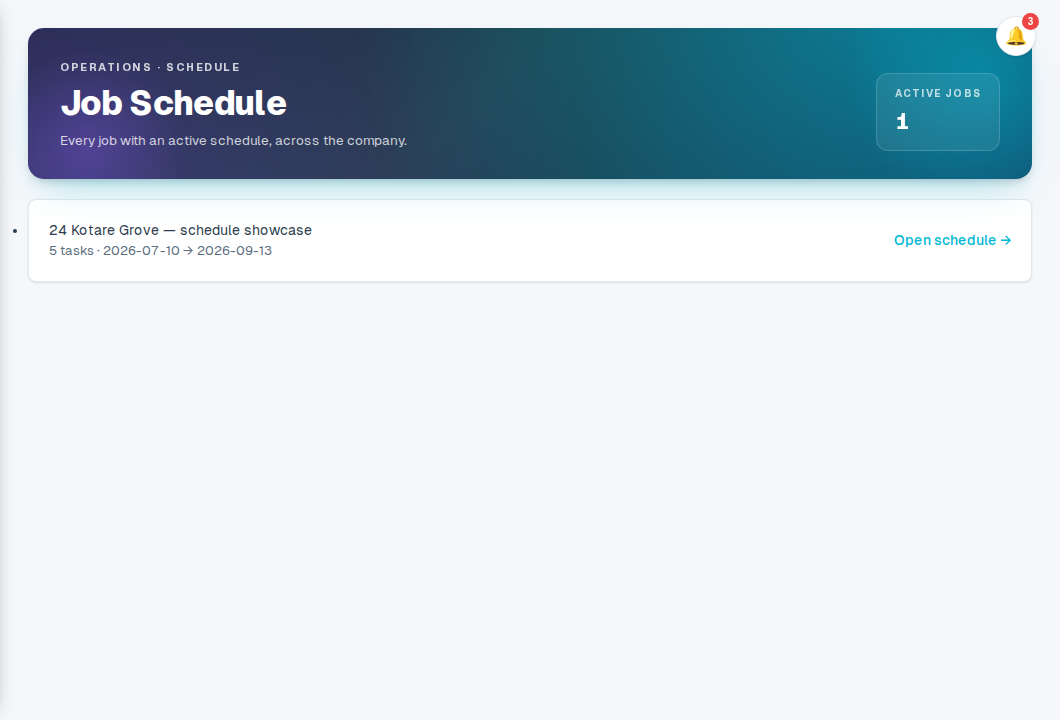
The Schedule link in the sidebar opens a company programme timeline: every job with scheduled work gets one date-range bar, alongside its task count and planned start/finish. The heading shows the full programme window and today, so it is easy to see which jobs overlap before opening one. Open schedule on any job takes you straight to that job's Schedule tab, whether that job is native or originally came from HubSpot.
A job only appears here once it has at least one task, so the page starts empty. Use the Pick a deal link to go to the pipeline, open a deal's Schedule tab, and add the first task.
Field accounts
Field accounts (see Field accounts for on-site team members) can open the Schedule tab on any job they're assigned to, and the Schedule page lists those same jobs for them. They can see the timeline (dates, dependencies, today's line) but can't add, move, resize, link or delete anything. There are no link handles on the bars and no +1 day control. It's a read-only view of the plan office staff have set. Where the programme list is turned on, field accounts get the same toggle between list and Gantt as office staff: the list simply has no 🗑 to delete a task. The ?tab=schedule deep link above works on a field account's deal view too, so the Schedule page's "Open schedule" links land on the timeline for them the same way they do for office staff.
Tips
- Dragging a task doesn't just move that one bar: check the tasks connected to it by an arrow, since they may have shifted too.
- A dependency's lag is in whole days, not hours: use it for cure times, inspection waits, delivery lead times, anything that needs a gap bigger than "starts the next day".
- Seeding from an estimate is a quick first draft, not a replacement for reviewing the actual sequence and dependencies a real build needs.
- The working-day calendar (if it's on for your account) never moves a date you typed or dragged yourself: it only decides where the app puts a task it works out for you.