
Day-to-day work
Line-item specifications: a price-free spec sheet for your field crew
Flag any line item on a native estimate as needing a written specification, write that description once, attach photos, and hand your field crew or quantity surveyor a price-free PDF that shows exactly what was flagged, with no dollar figures anywhere.
This is for native estimates (the spreadsheet-style Estimate tab). If your deals are estimated in Buildxact, this feature doesn't apply.
If you don't see a "Specifications" tab on a deal, or a "Specifications" column on the estimate grid, an administrator hasn't turned this feature on yet.
Which plan includes it
Line-item specifications is included on the Crew and Company plans. On the Solo plan the Specifications column and tab don't appear: an owner can upgrade any time under Settings → Billing.
Anything you've already flagged and written up stays saved if your business is later moved down to Solo: you just can't flag new items or edit existing write-ups until you upgrade again.
Flagging an item
On a deal's Estimate tab, the grid has a Specifications column at the end. Press + Add to specs for any line item you want to write a specification for: a benchtop finish, a fixture brand, a particular install detail, anything worth spelling out for whoever's on site. The button changes to ✓ In specs when selected; press it again to remove the item from the list. The Specifications heading shows how many items are selected across the estimate (for example, 2 items selected). Click View list to open the Specifications tab, where you can write the details and attach photos.
You can flag (and unflag) an item at any point in the estimate's life: before it's sent, after it's accepted, even while the job is under way. Flagging doesn't lock or change the item's price in any way.
Writing the specification
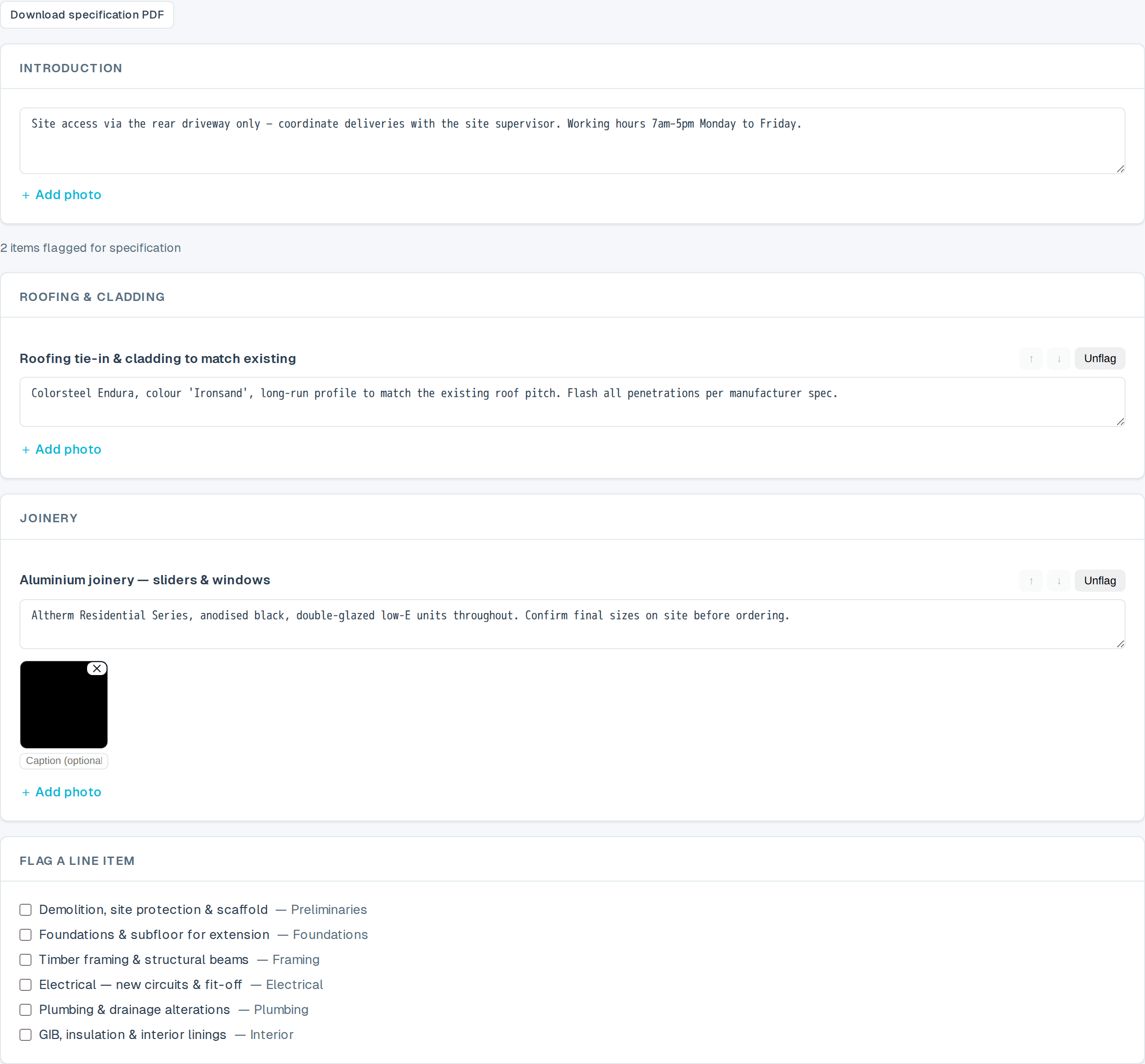
Open the deal's Specifications tab (only visible once at least one item is flagged, or always visible so you can add an intro up front; check with an admin if you don't see it). There you'll find:
- Introduction: a general note shown at the top of the document (site access, working hours, whatever applies to the whole job).
- One section per category, each listing its flagged items. For every item you can:
- write (or edit) its specification text, - attach one or more PNG or JPEG photos with a caption, - reorder it up/down within the list, - unflag it if you change your mind.
- Flag a line item: a plain list of every item that isn't in the report yet, so you can add more without leaving the tab. Press Add and its new card is scrolled into view and briefly highlighted above, right where you write its details and attach photos.
Everything saves automatically as you type or upload: the same "All changes saved" indicator you see on the Estimate tab shows here too.
Downloading the specification PDF
Click Download specification PDF at the top of the tab. The PDF carries your business letterhead (same as the quote PDF) under a "Specifications" heading, followed by your introduction and every flagged item's write-up and photos, grouped by category, with no prices anywhere. It's built for field crew and QSs, not for the client.
Specification PDFs have no "Prepared for" section or automatic client contact details, so you can share the same document with multiple contractors or anyone outside your contractor directory. Client quote PDFs still include "Prepared for".
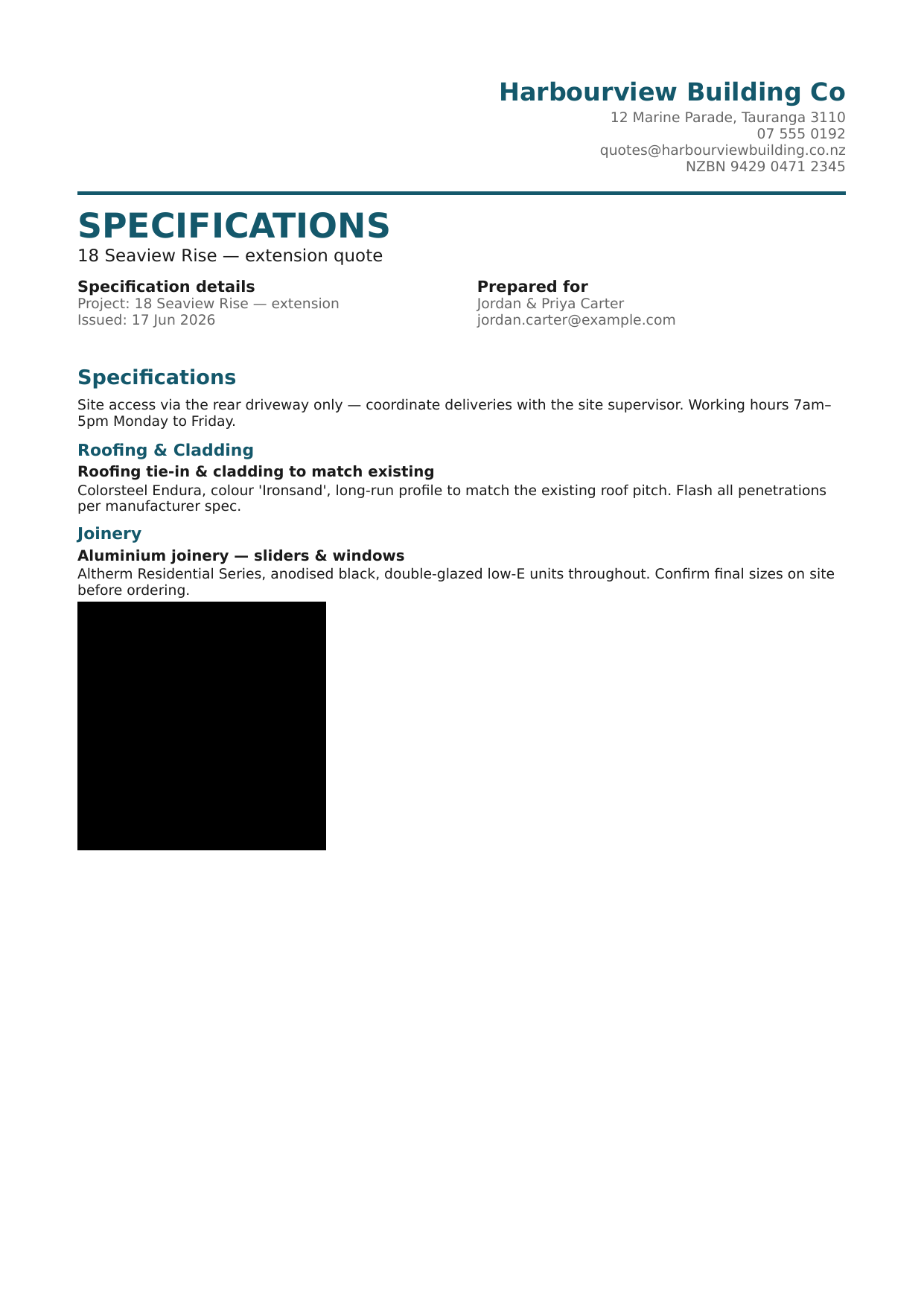
Because it never shows a price, it's available to Field accounts too (see Field accounts for on-site team members), not just office staff.
In the client quote
If your business also uses Quote templates, a template can include a Specifications block: when it's ticked on, the same introduction and flagged item write-ups (still price-free) appear inside the client's quote PDF as well, grouped the same way.
Tips
- A flagged item with nothing written yet still shows its heading in the PDF, as a visible reminder that it still needs describing.
- Photos are capped at a few megabytes each and must be PNG or JPEG.
- Unflagging an item hides it from the specification document, but its written text and photos aren't deleted. Flag it again later and they're still there.