
Day-to-day work
Downloading a quote as a PDF
Turn a native estimate into a tidy, client-ready quote PDF you can email or print, with your own logo, colours, terms and payment details.
This is for native estimates (the spreadsheet-style Estimate tab). If your deals are estimated in Buildxact, keep using Buildxact's own quote PDFs: the Download PDF button and the Settings → Quote PDF section won't appear.
Downloading a quote
- Open a deal and go to the Estimate tab.
- Pick the estimate you want to send (use the switcher if there's more than one).
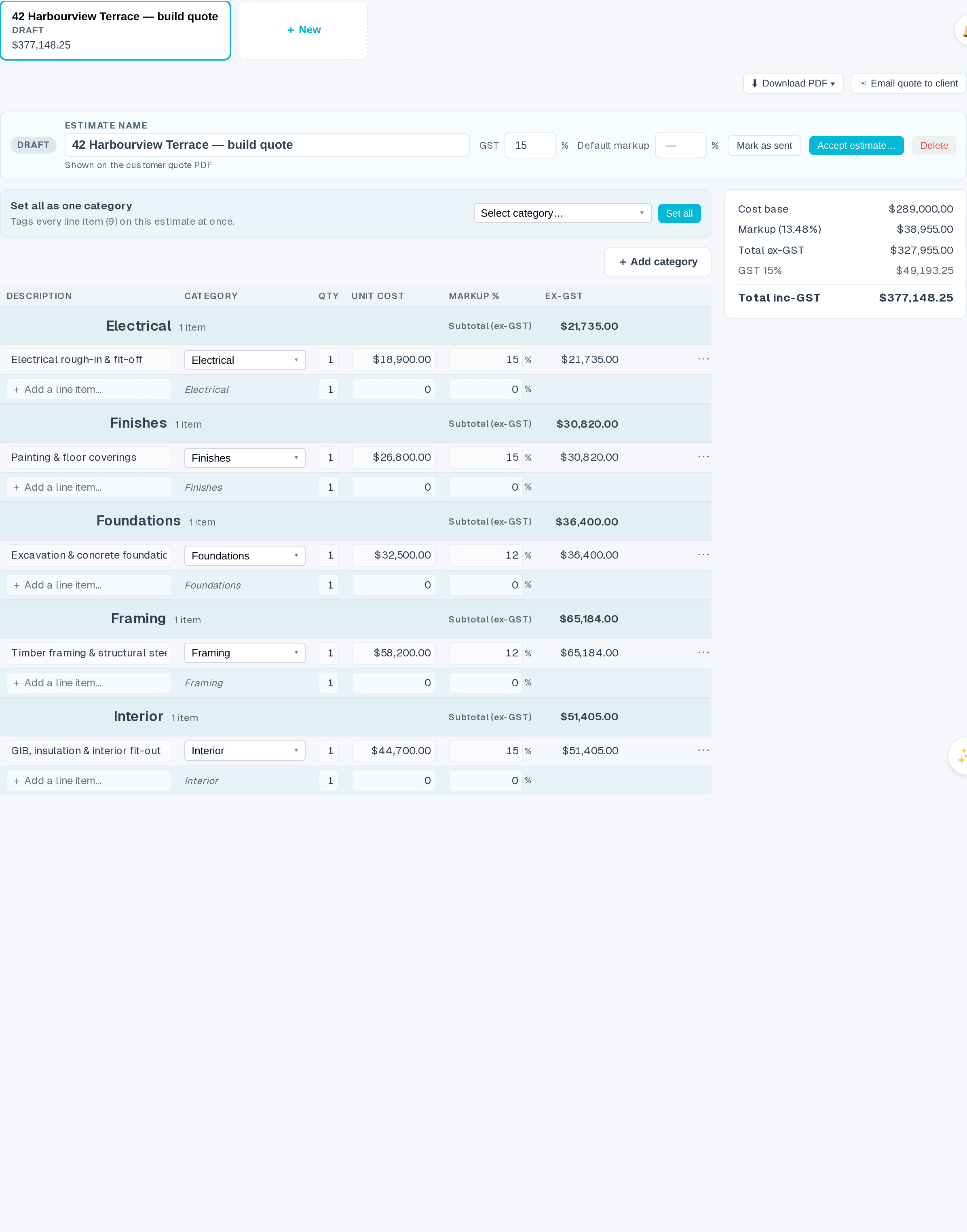
- Click ⬇ Download PDF at the top of the estimate.
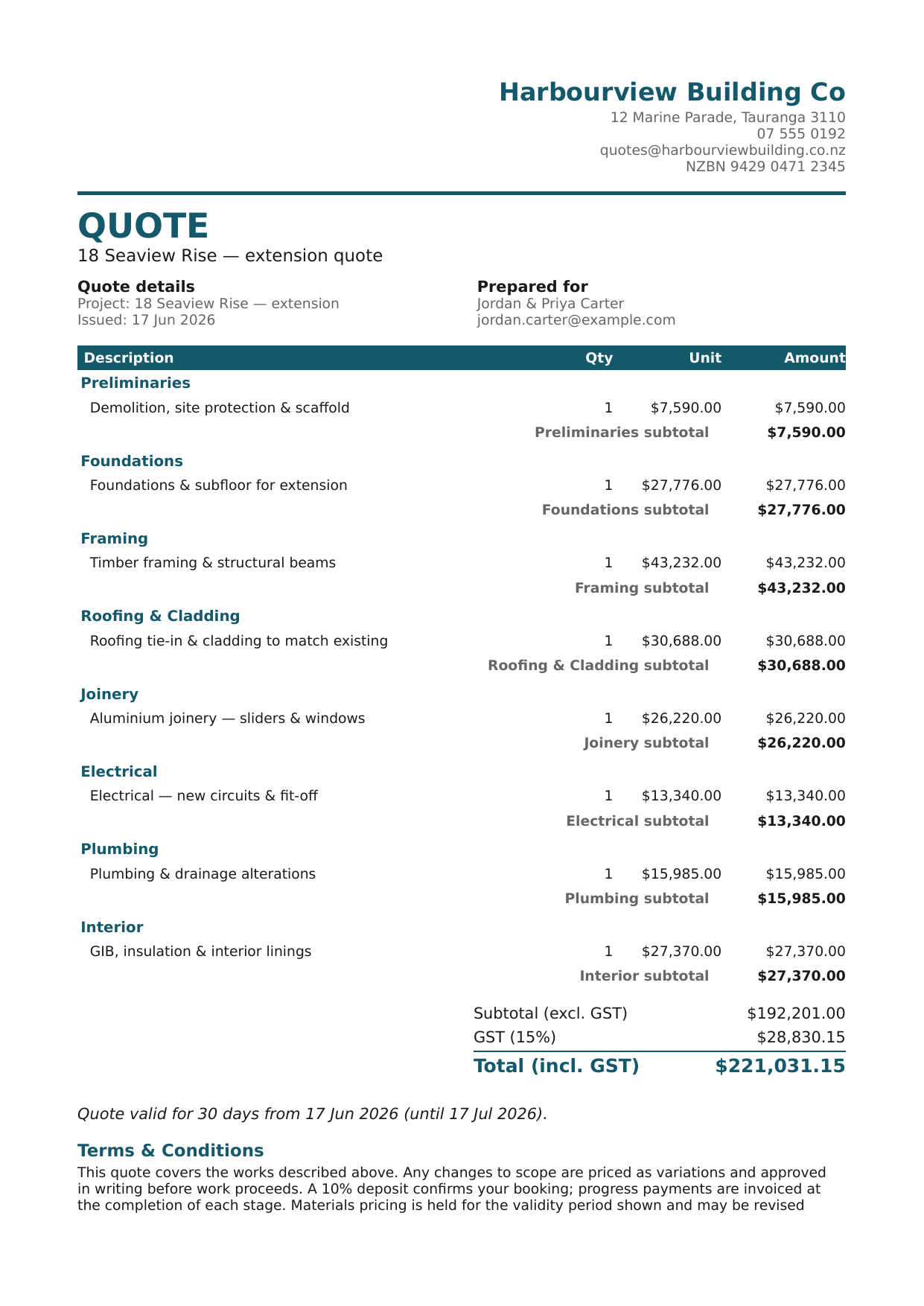
A PDF downloads to your device. It includes:
- Your letterhead: logo, business name, address, phone, email and GST/company number.
- The client's name and email, the quote name, and the date it was issued.
- The priced works, grouped by category, with subtotals, GST and the grand total.
- Your terms & conditions and payment details.
- A "Quote valid for N days" line.
Only line items that are actually in the estimate appear: anything you've excluded is left out automatically, just like everywhere else in the app.
Emailing the quote straight to your client
Instead of downloading the PDF and attaching it yourself, you can send it to your client without leaving the app. Emailing uses the deal's contacts in the app's built-in CRM, so it's available when your deals live here (not when your CRM is an external system like HubSpot, download the PDF and send it from there instead).
- Open the deal's Estimate tab and pick the estimate you want to send.
- Make sure the deal has a contact with an email address (add one on the Contacts tab if it doesn't).
- Click ✉ Email quote to client at the top of the estimate, next to Download PDF.
- A short confirm appears showing exactly who it's going to, e.g. *"Send to jordan@example.com?"*. Click Send quote to send, or Cancel to back out.
The client receives a short, branded message from your business with a quote PDF attached: your default Quote template (see Quote templates) if you've set one up, or this plain layout otherwise. If something goes wrong rendering a template, this plain layout is used automatically so the email always goes out.
A few things to know:
- If the estimate is still a draft, sending it marks it as Sent automatically, so there's no need to press "Mark as sent" separately.
- Re-sending an estimate that's already Sent or Accepted just sends it again; its status doesn't change.
- If the deal has no contact email, the button is greyed out with the hint *"Add a contact email to send the quote."* Add one and it lights up.
- The email goes to the deal's primary contact. The message and sender name use your business branding from Settings → Quote PDF.
Setting up your quote branding
You control how every quote looks from Settings → Quote PDF (owner access). A live preview on the right shows exactly what clients get, including changes you haven't saved yet.
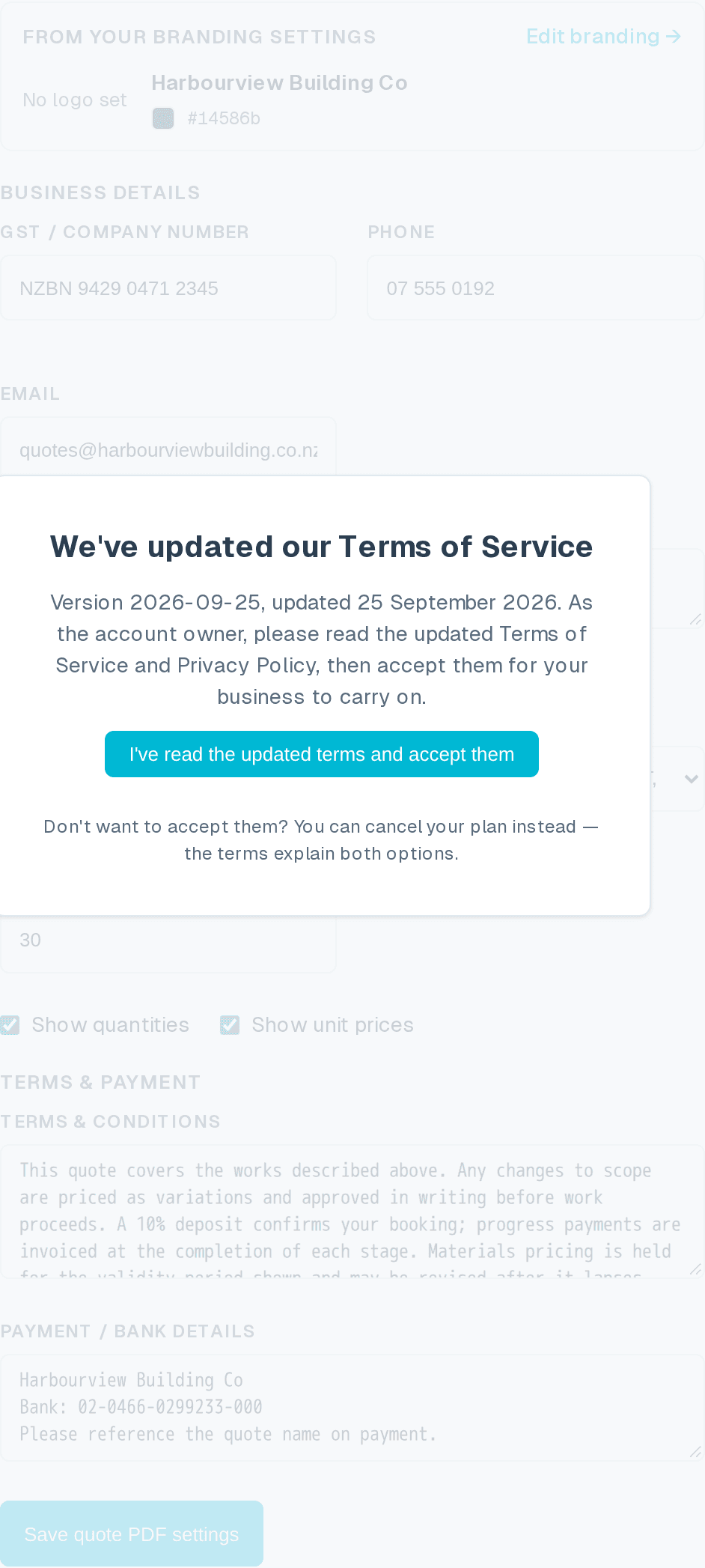
You can set:
- Business details: name, address, phone, email and GST/company number for the letterhead.
- Logo: upload a PNG or JPEG (up to 500 KB). It appears top-left on every quote.
- Pricing detail: choose how much the client sees: *Detailed* (every line item with its amount), *Category subtotals only* (one line per category), or *Lump sum* (just the total). If you use Quote templates, each template carries its own copy of this setting, so a premium proposal and a quick repair quote can show different levels of detail.
- Show quantities / Show unit prices: extra columns on detailed quotes.
- GST presentation: show prices *excluding* GST with GST added at the bottom, or show prices *including* GST.
- Quote validity (days): drives the "valid for N days" line.
- Accent colour: the heading and table colour, to match your brand.
- Terms & conditions and Payment / bank details: free text blocks printed at the foot of every quote.
Click Save quote PDF settings and your next download uses the new look.
Tips
- Settings are saved per business, so every quote you download stays consistent.
- The preview uses a sample estimate; real quotes pull the actual deal, client and priced works. It updates on its own as you type; you don't need to refresh it.
- To preview a *real* deal's quote before saving a file, use 👁 Preview first in the download panel on the deal's Estimate tab (see Quote templates).
- Turned off unexpectedly? An administrator may have disabled the feature; the button and settings section then simply disappear.